qwen image 2.0 pro negative prompt AI Generator
Unlock the full potential of AI image generation with QWEN Image 2.0 Pro's negative prompt feature. By specifying elements you wish to exclude, you can achieve more accurate and visually appealing results, ensuring your creative vision is realized without unwanted artifacts.
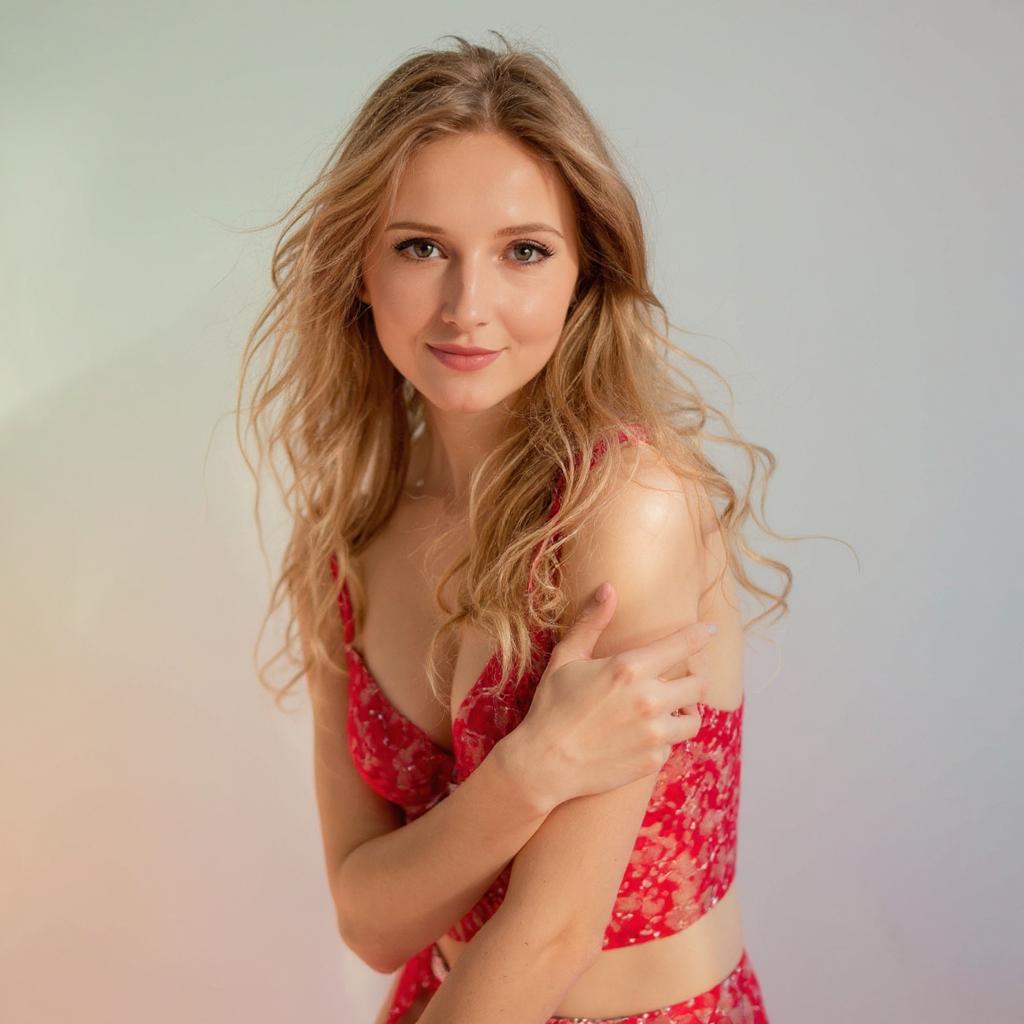
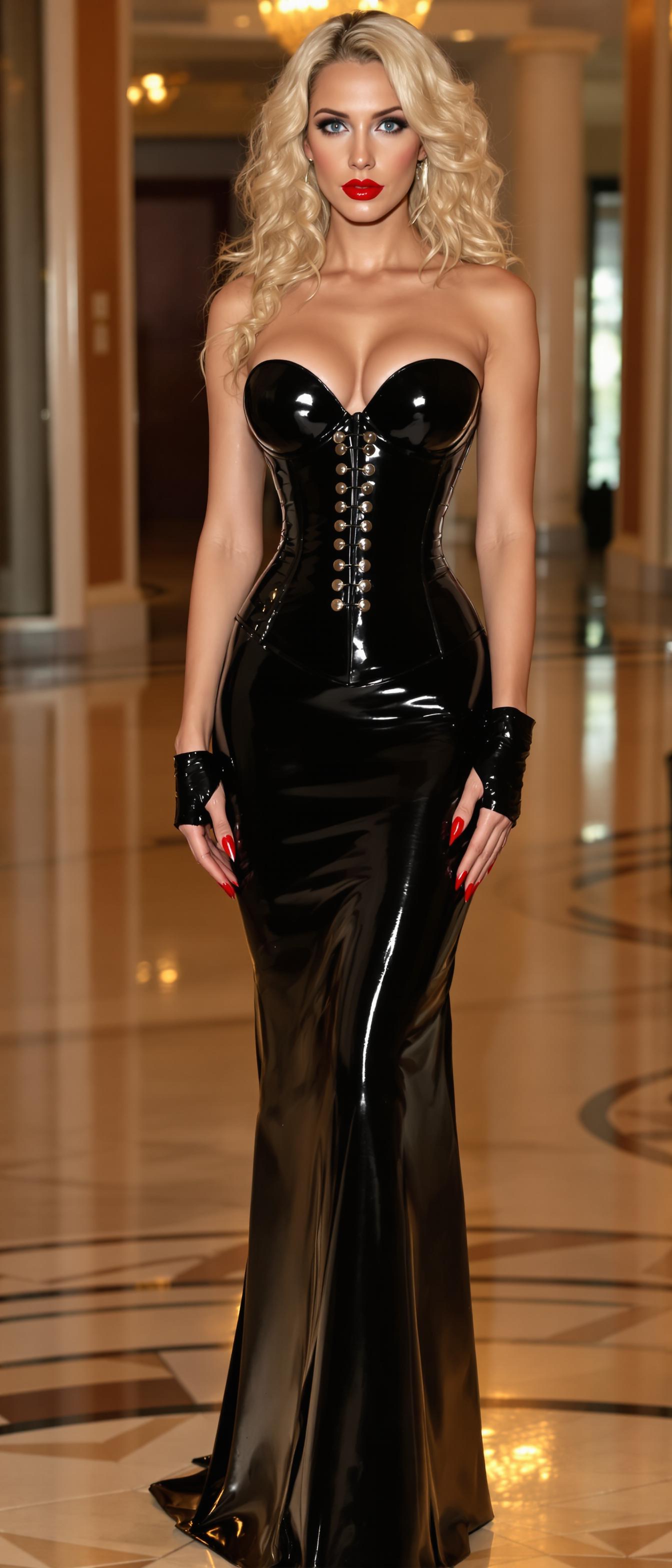
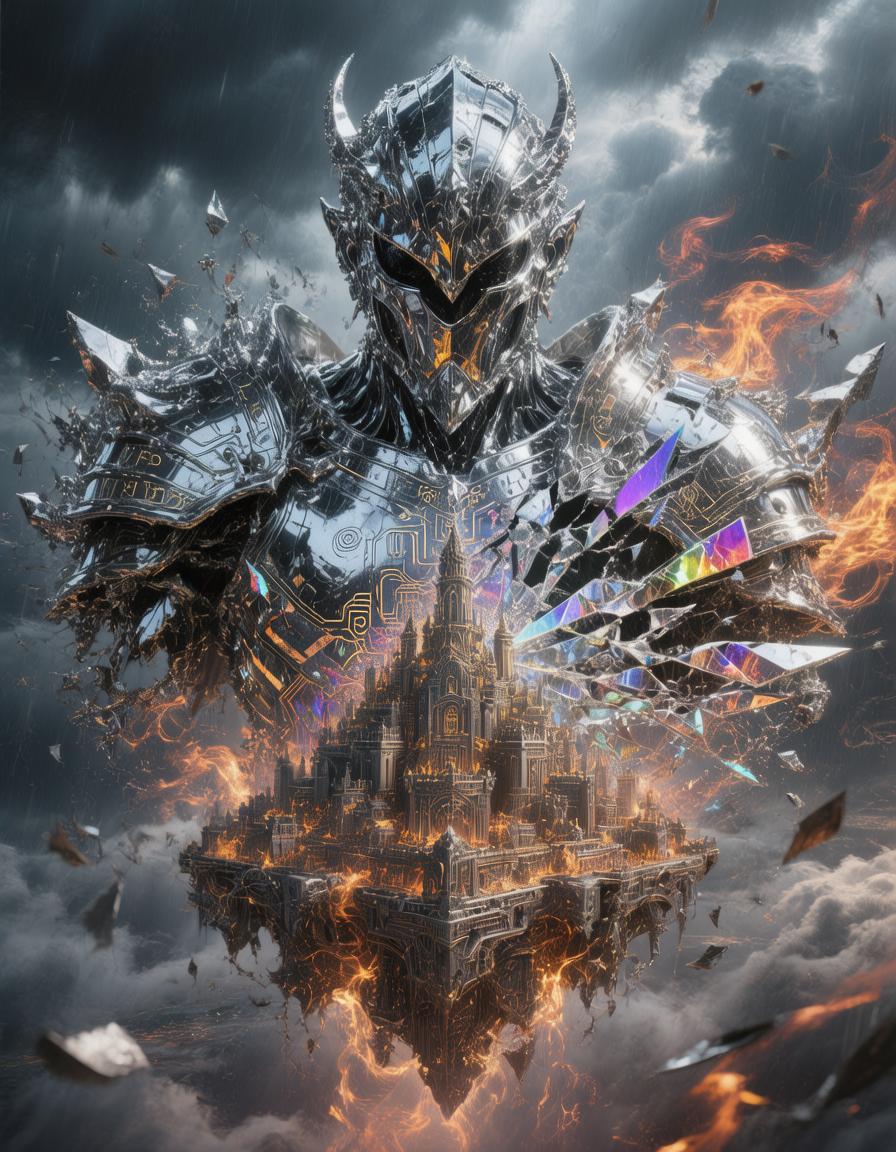
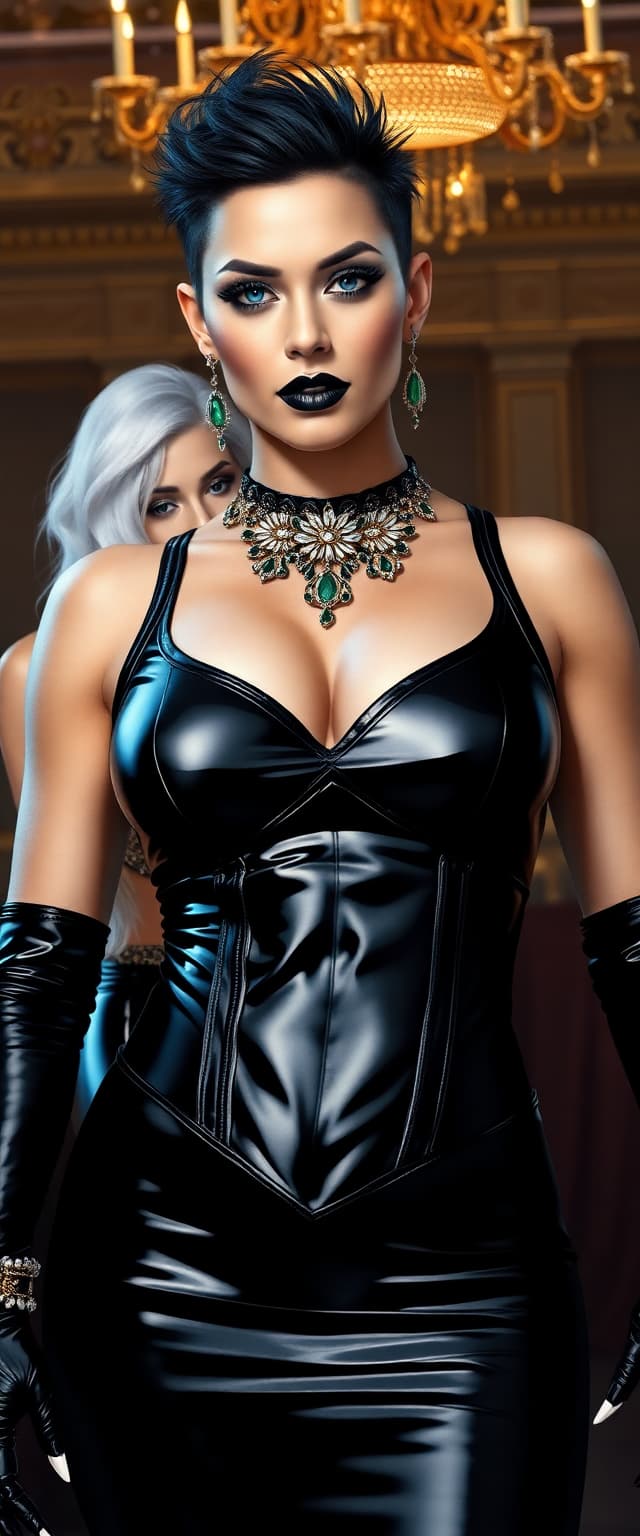
Join thousands of creators who have enhanced their AI-generated images using QWEN Image 2.0 Pro's advanced negative prompt capabilities.
Why Choose Pixel Dojo for qwen image 2.0 pro negative prompt
Professional-quality results with cutting-edge AI technology
Achieve Precise Image Outputs
By defining unwanted elements, your generated images align closely with your creative intent, reducing the need for post-editing.
Save Time on Revisions
Minimize iterations by guiding the AI to avoid specific features, streamlining your workflow.
Enhance Visual Quality
Prevent common AI generation issues like distortions or unwanted objects, resulting in cleaner and more professional images.
How It Works
Creating refined images with QWEN Image 2.0 Pro is straightforward. Follow these steps to effectively use negative prompts:
Step 1: Access QWEN Image 2.0 Pro
Log in to your PixelDojo account and navigate to the 'Generate Images' section to select QWEN Image 2.0 Pro.
Step 2: Enter Your Positive Prompt
Describe the image you want to create, specifying desired elements, styles, and compositions.
Step 3: Add Negative Prompts
In the negative prompt field, list elements you want to exclude, such as 'blurry', 'low quality', or 'extra fingers'.
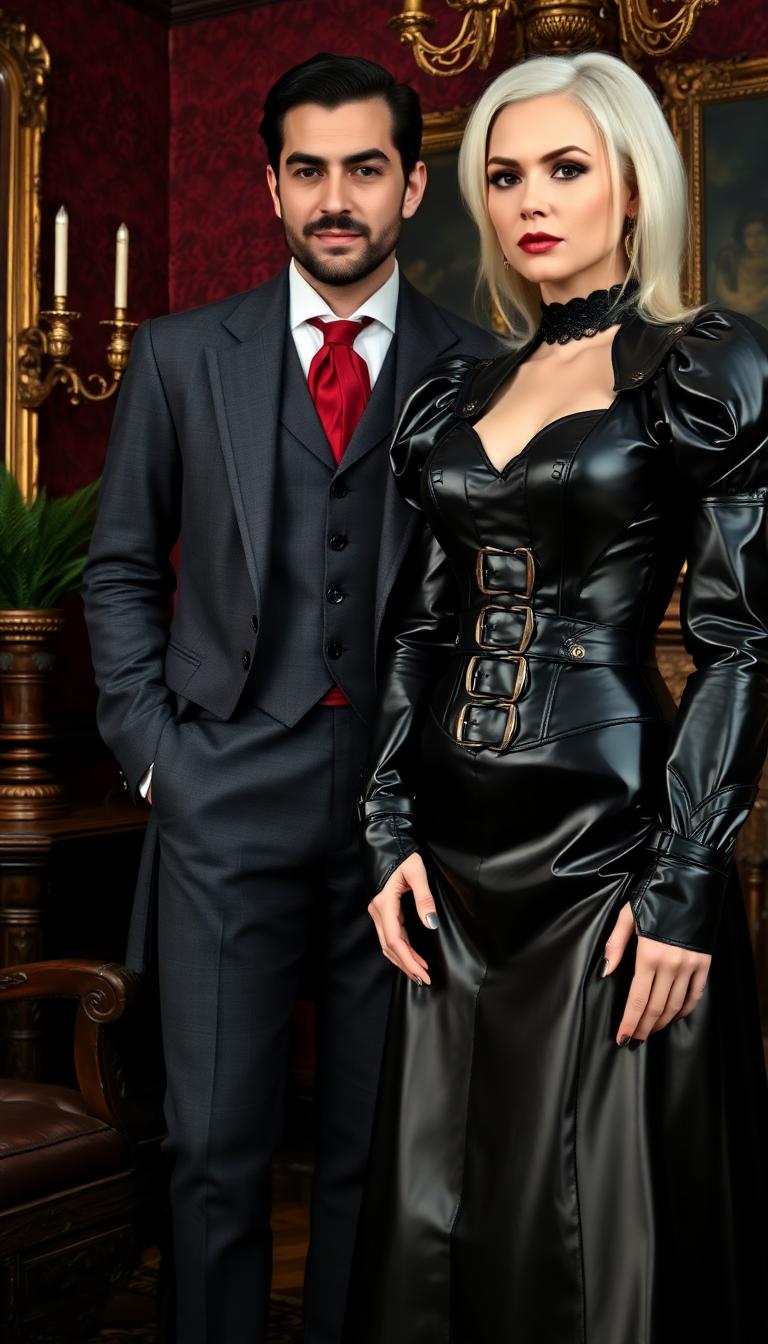
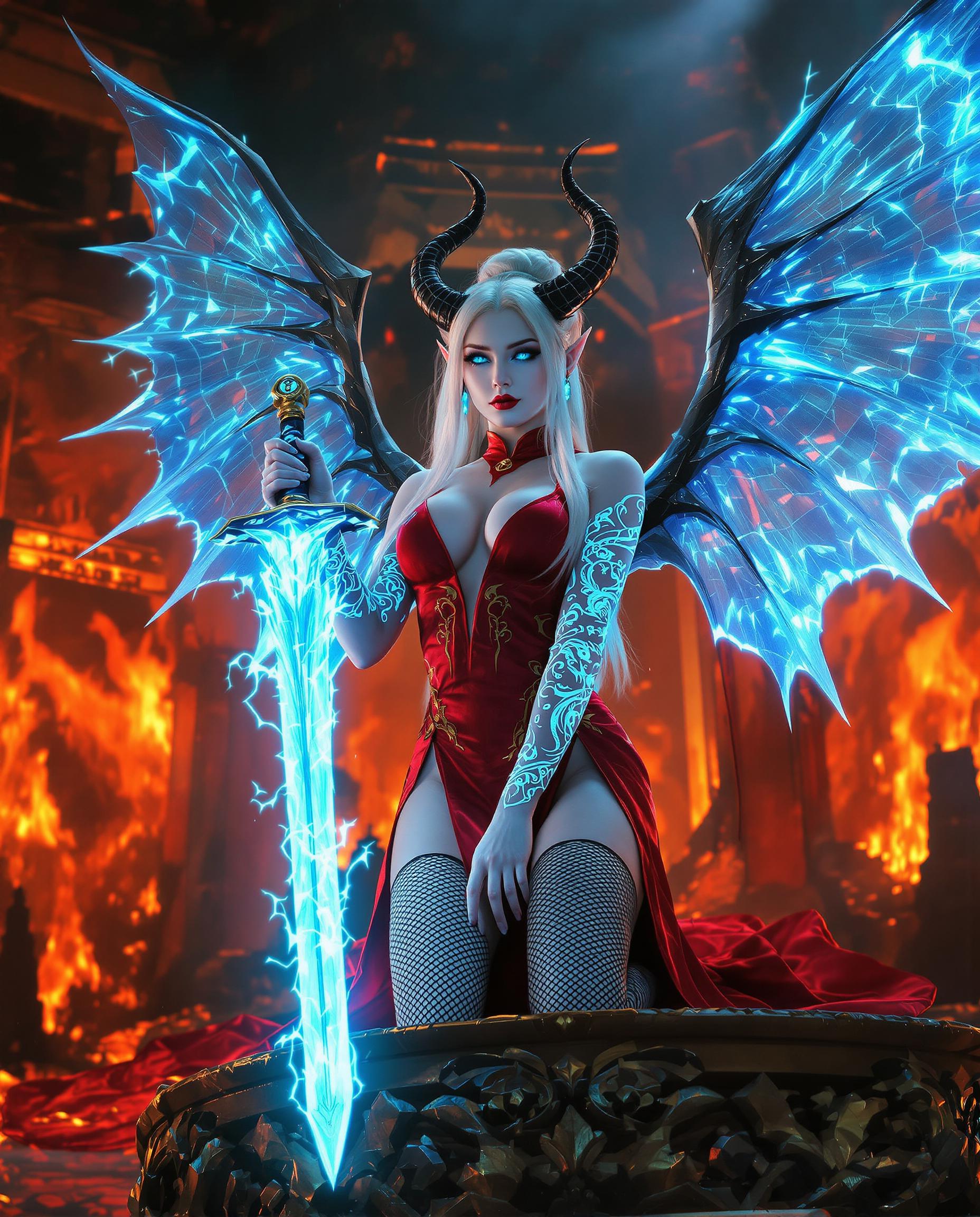
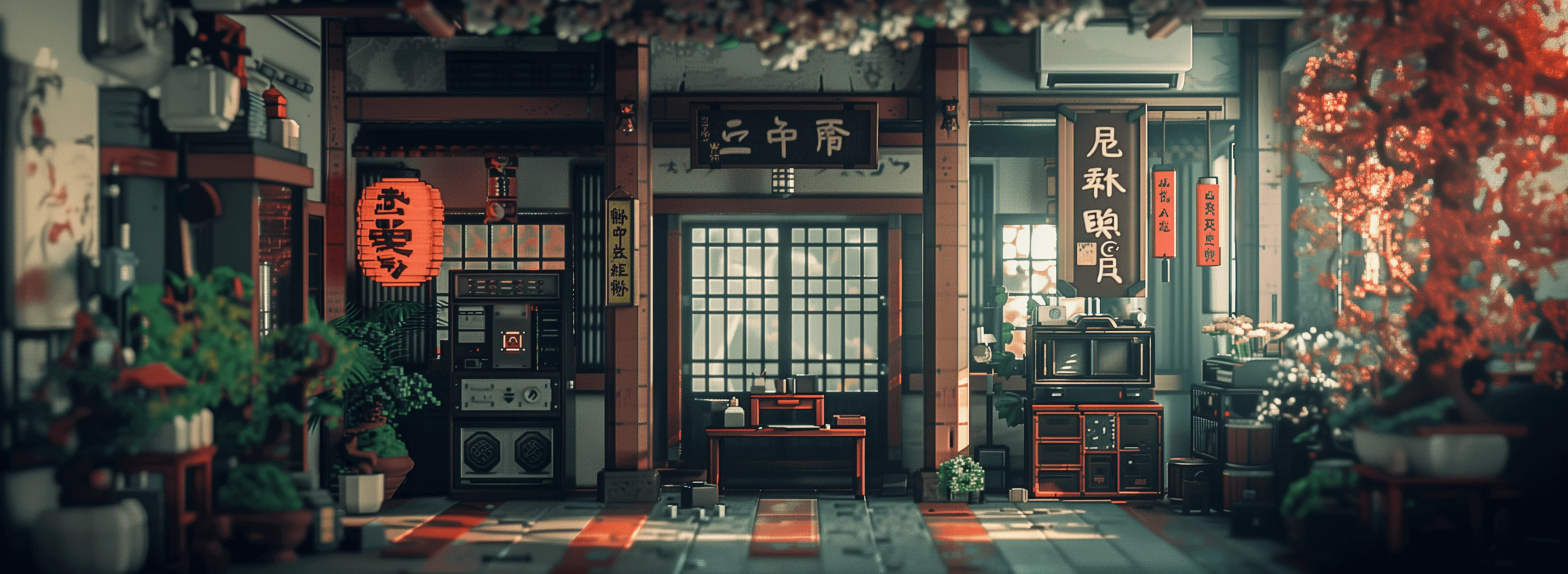
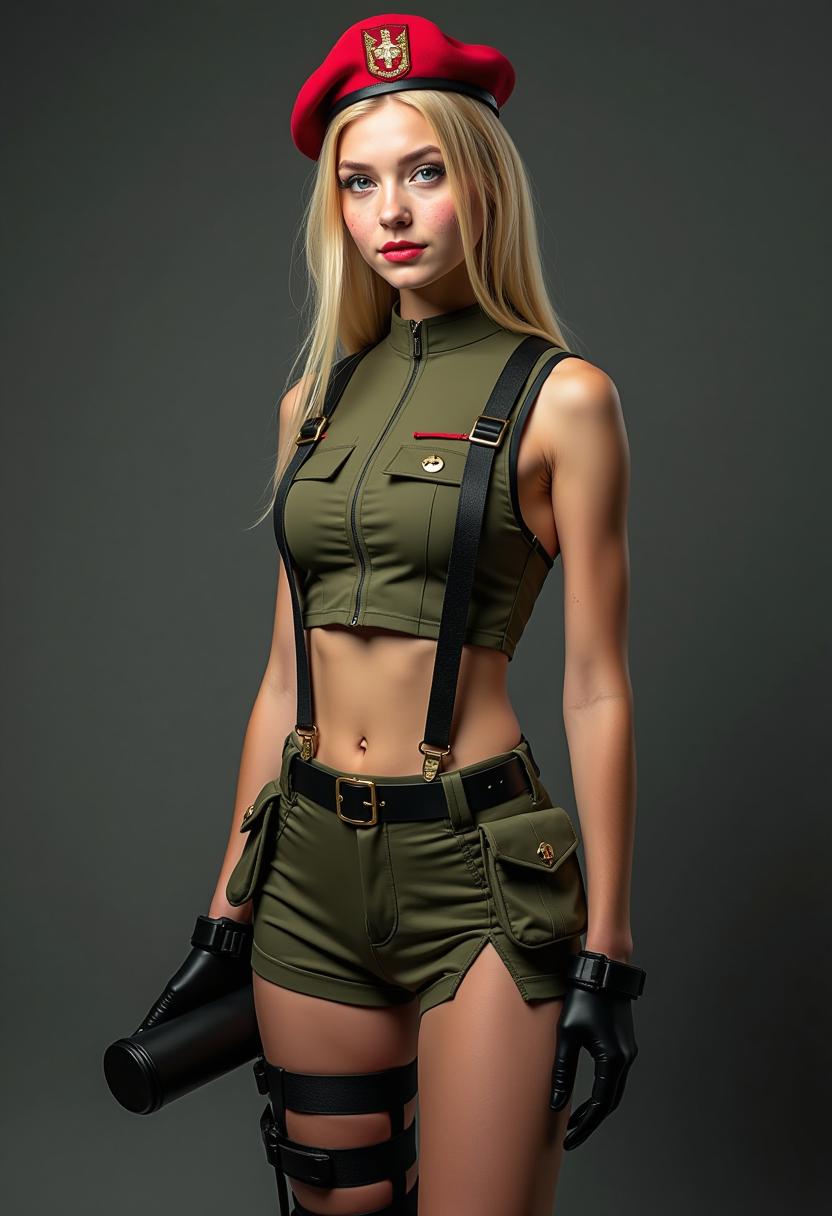
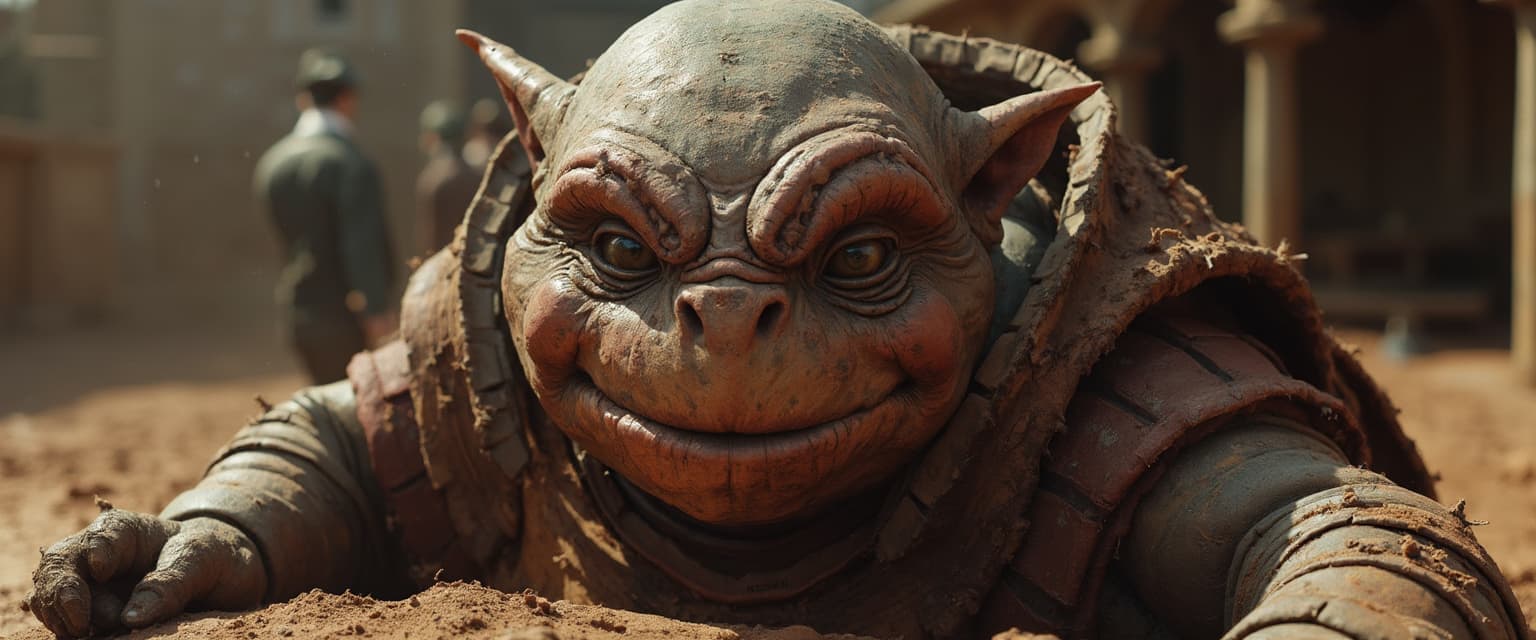
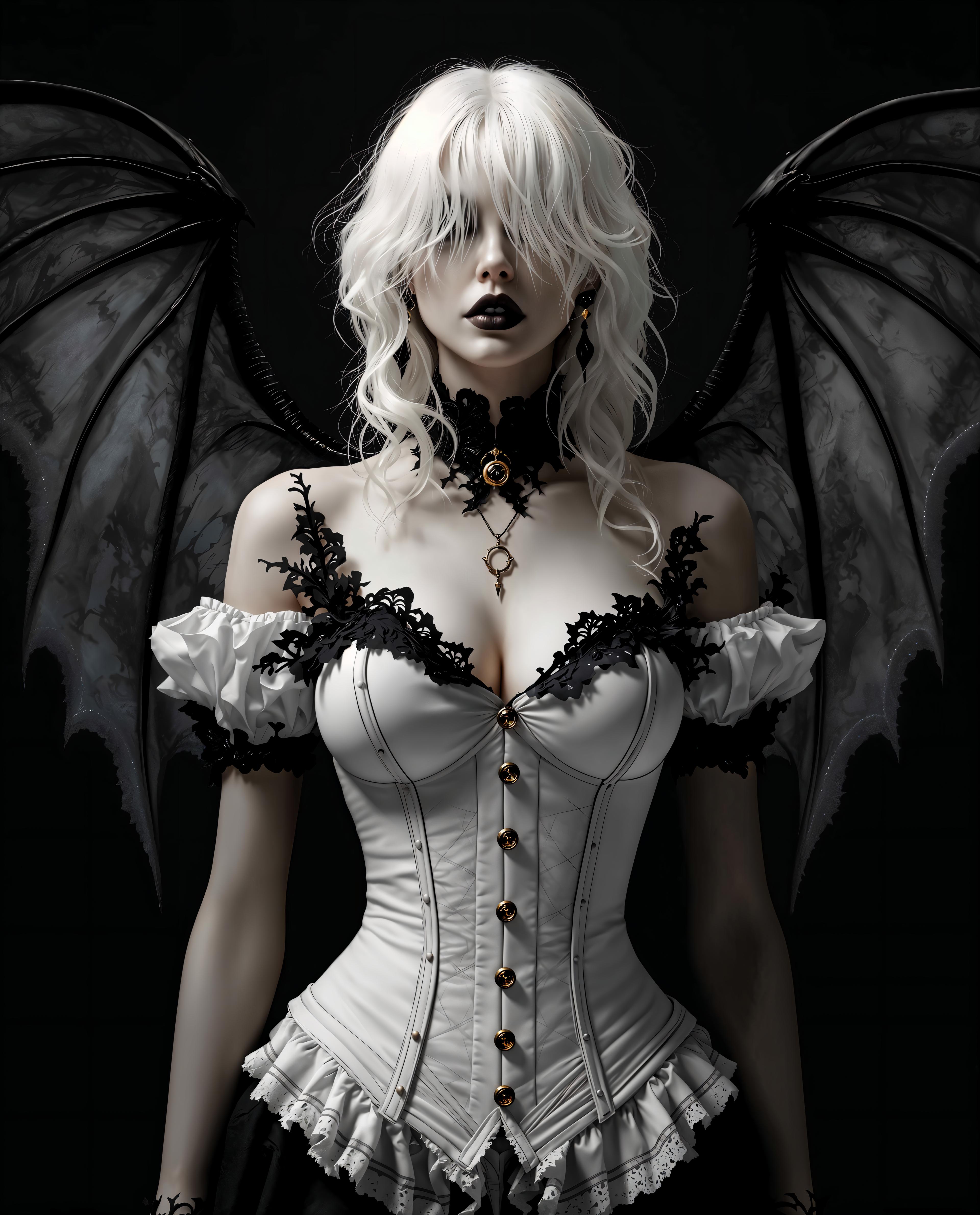
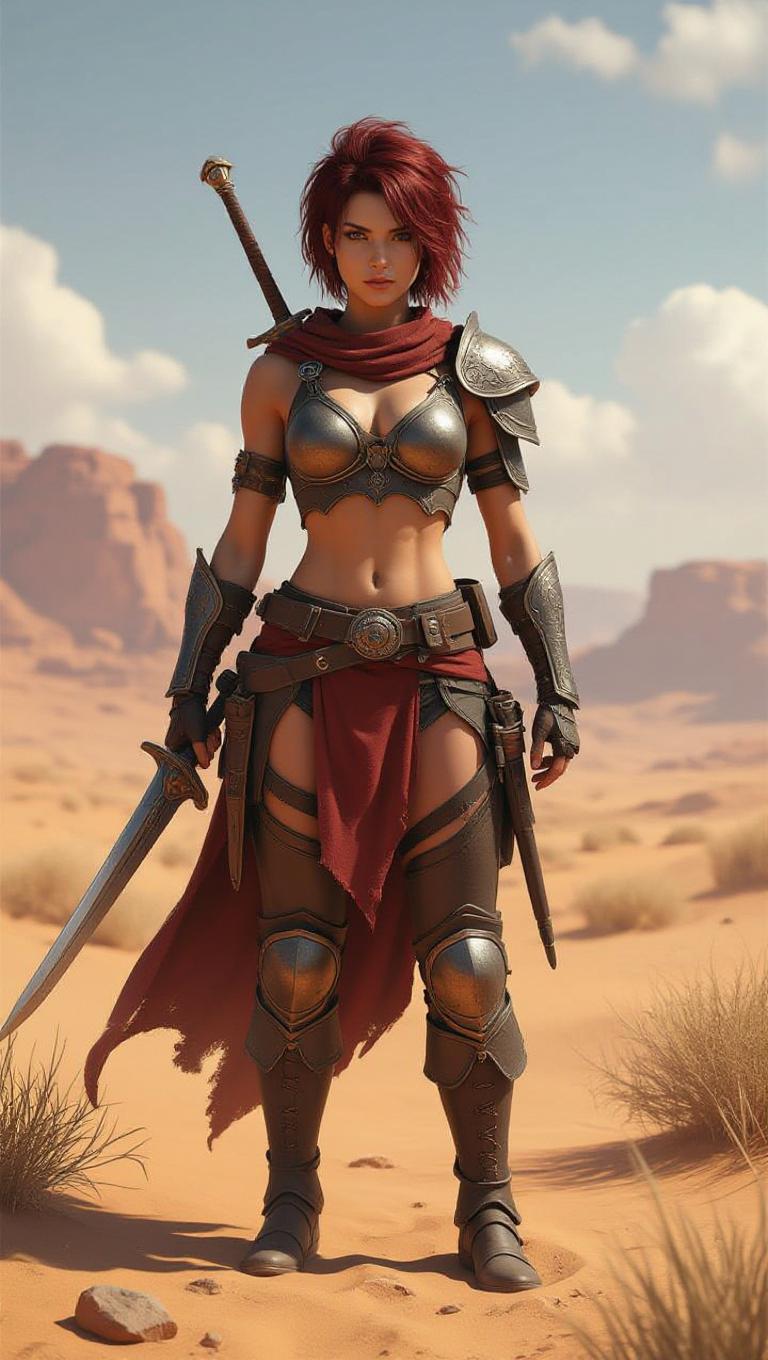
![=== Scene ===
Tone: generate an 8-second, hyper-realistic, seamlessly looping video capturing the raw power and physics of a single moment in a street basketball game, rendered in extreme slow motion., {"type":"High-speed sports cinematography, played back in extreme slow motion","duration_seconds":8,"looping":"true, seamless loop","pacing":"Intense, powerful, and dramatic. The slow motion turns a split-second action into a detailed ballet of force.","animated_elements":[{"element":"Ball Impact and Deformation","description":"The primary animation. A defender's hand forcefully impacts the top of a basketball. In slow motion, we see the defender's fingers digging into the pebbled leather, the ball visibly compressing and deforming under the force. The ball's backspin momentarily stops and reverses as it's knocked away. This entire impact and recoil sequence forms the loop."},{"element":"Sweat and Particle Dynamics","description":"The explosive impact sends a fine spray of sweat droplets flying from both the hand and the ball's surface. The droplets hang in the air like tiny jewels in the bright sun. Dust and microscopic rubber particles from the court are kicked up by the motion."},{"element":"Anatomical Realism","description":"The muscles and tendons in the defender's forearm and hand are seen contracting with extreme force. Veins bulge on the skin's surface. The skin on the fingertips whitens from the pressure against the ball."},{"element":"Background Motion","description":"Through the chain-link fence in the deep background, the blurred figures of spectators are seen reacting to the play, their movements also in slow motion, adding to the atmosphere."}]}, {"style":"Hyperrealistic, gritty sports documentary style, emulating the aesthetic of a high-end Nike commercial or a feature film.","camera_setup":{"camera":"Phantom VEO 4K High-Speed Camera","lens":"100mm Telephoto Prime Lens","perspective":"Static, locked-down shot from a very low angle, looking up at the point of impact. This heroic angle makes the action feel monumental and powerful.","description":"The sun is high in the sky, creating high-contrast, sharp-edged shadows. This intense light creates brilliant specular highlights on the sweat-glistened skin and the curved surface of the basketball, emphasizing every texture."},"composition":{"framing":"A tight, dynamic composition focused entirely on the collision between the hand and the ball. The chain-link fence in the background creates a gritty, geometric pattern that cages the action."}}
=== Subject ===
Description: {"base_subject":"An extreme close-up, slow-motion shot of a hand blocking a basketball at the apex of a shot on an iconic urban court.","key_details":[{"element":"The Hand and Arm","description":"The hand of a highly athletic basketball player. The skin glistens with a realistic sheen of sweat, and we can clearly see skin pores, calluses, and the fine lines of the knuckles. The hand is powerful and expressive."},{"element":"The Basketball","description":"A well-worn, official Spalding basketball. The pebbled texture is rendered in extreme detail, with dirt and scuff marks lodged in the grooves. The printed logos are slightly faded from use."},{"element":"The Environment","description":"The background is the iconic, green, tight-mesh chain-link fence of 'The Cage'. The fence is slightly rusted in places. Through the links, the blurred shapes of spectators and the red brick of surrounding Village buildings are visible."}]}](https://cdn.pixeldojo.ai/cdn-cgi/image/f=auto,q=75,w=3840/pixeldojo/generated-images/1755021969507-6jzhtpsbd.png)
The Pixel Dojo Advantage
Why PixelDojo's QWEN Image 2.0 Pro stands out in AI image generation:
| Others | Pixel Dojo |
|---|---|
| Traditional Image Editing | Automate the exclusion of unwanted elements, reducing manual editing time. |
| Generic AI Tools | Advanced negative prompt capabilities offer greater control over image outputs. |
| Manual Design Processes | Generate high-quality images quickly without extensive design skills. |
Loved by Creators
See what our community says about qwen image 2.0 pro negative prompt
"Using QWEN Image 2.0 Pro's negative prompts, I achieved the exact image I envisioned without tedious edits."
Alex Johnson
Digital Artist
"The negative prompt feature has revolutionized my workflow, allowing me to create cleaner images faster."
Maria Lopez
Graphic Designer
Common Questions
Everything you need to know about qwen image 2.0 pro negative prompt AI generation
How do negative prompts improve AI-generated images?
Negative prompts guide the AI to exclude specified elements, resulting in images that closely match your desired outcome without unwanted features.
Can I use multiple negative prompts in QWEN Image 2.0 Pro?
Yes, you can list multiple elements to exclude by separating them with commas in the negative prompt field.
What are common negative prompts to use?
Common negative prompts include 'blurry', 'low quality', 'extra fingers', 'watermark', and 'text overlay' to prevent these issues in generated images.
Is there a limit to the number of negative prompts I can use?
While there's no strict limit, it's best to keep negative prompts concise and relevant to avoid unintended exclusions.
Do negative prompts affect image generation time?
Negative prompts have a minimal impact on generation time but significantly enhance the quality of the output.
Can I edit negative prompts after generating an image?
Yes, you can adjust negative prompts and regenerate the image to refine the results as needed.