Negative prompt Wan 2.6 AI Generator
Creating the perfect AI-generated image often involves more than just specifying what you want; it's equally important to define what you don't want. With PixelDojo's advanced AI tools, including WAN 2.6, you can use negative prompts to eliminate unwanted elements, ensuring your images are exactly as you envision. This guide will show you how to harness the power of negative prompting to achieve flawless results.
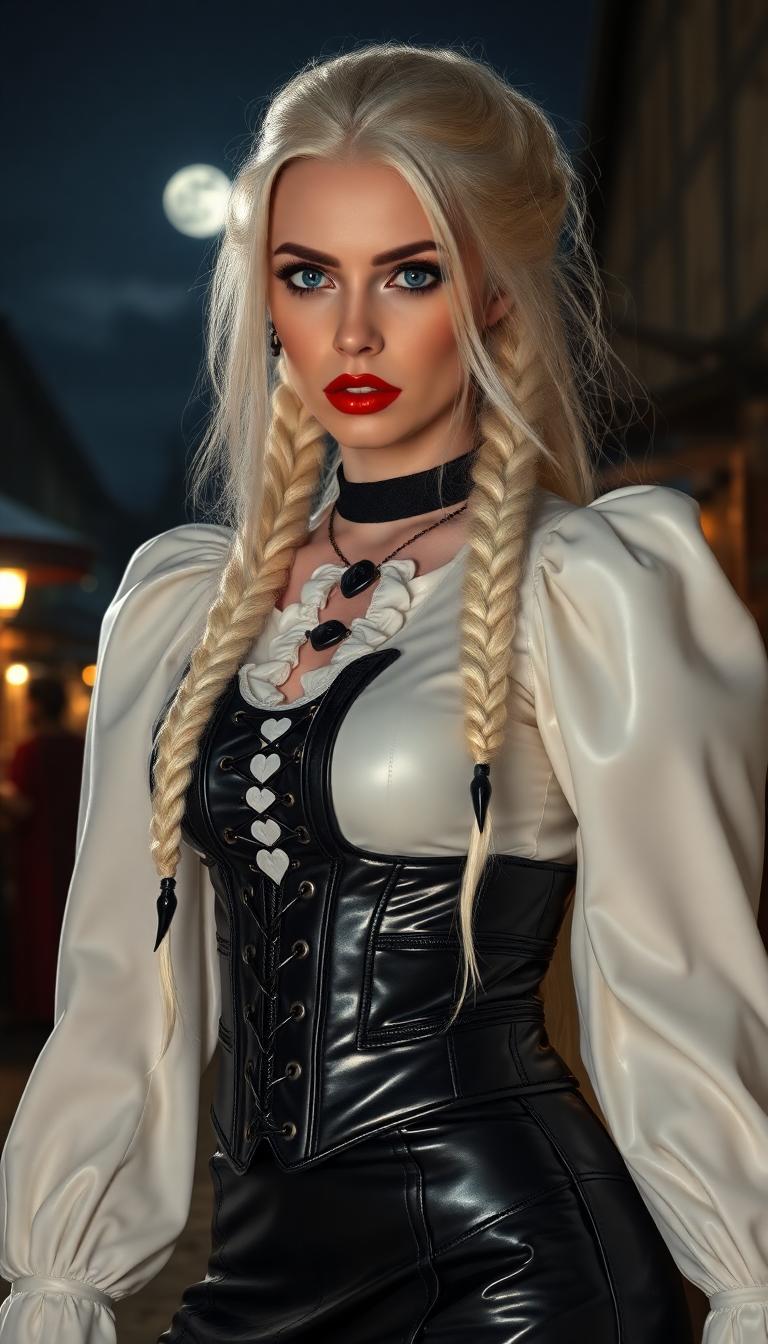
Join over 10,000 creators who have enhanced their AI image generation with PixelDojo's cutting-edge tools.
Why Choose Pixel Dojo for Negative prompt Wan 2.6
Professional-quality results with cutting-edge AI technology
Eliminate Unwanted Elements
Use negative prompts to remove specific undesired features from your AI-generated images, ensuring a cleaner and more accurate result.
Enhance Image Quality
By specifying what to avoid, you can reduce artifacts and improve the overall quality and realism of your images.
Achieve Creative Control
Negative prompting allows you to fine-tune your images, giving you greater control over the final output.
How It Works
Follow these steps to effectively use negative prompts in WAN 2.6 for superior image generation:
Step 1: Select WAN 2.6 Image Tool
Log in to your PixelDojo account and choose the WAN 2.6 Image tool from the 'Create Images' section.
Step 2: Enter Your Positive and Negative Prompts
In the prompt input field, describe the image you want to create. In the negative prompt field, list elements you want to exclude (e.g., 'blurry', 'low quality', 'distorted').
Step 3: Generate and Refine Your Image
Click 'Generate' to create your image. Review the result and adjust your negative prompts as needed to refine the output.
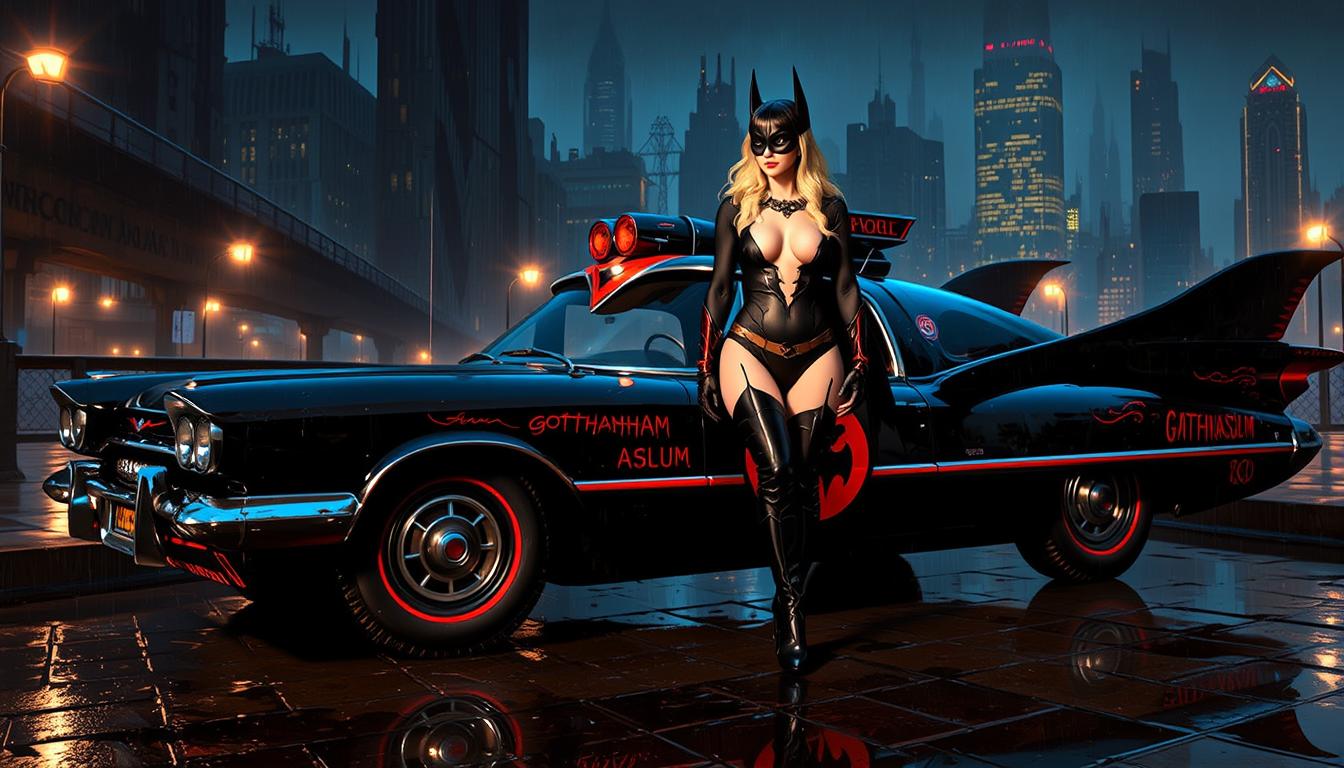
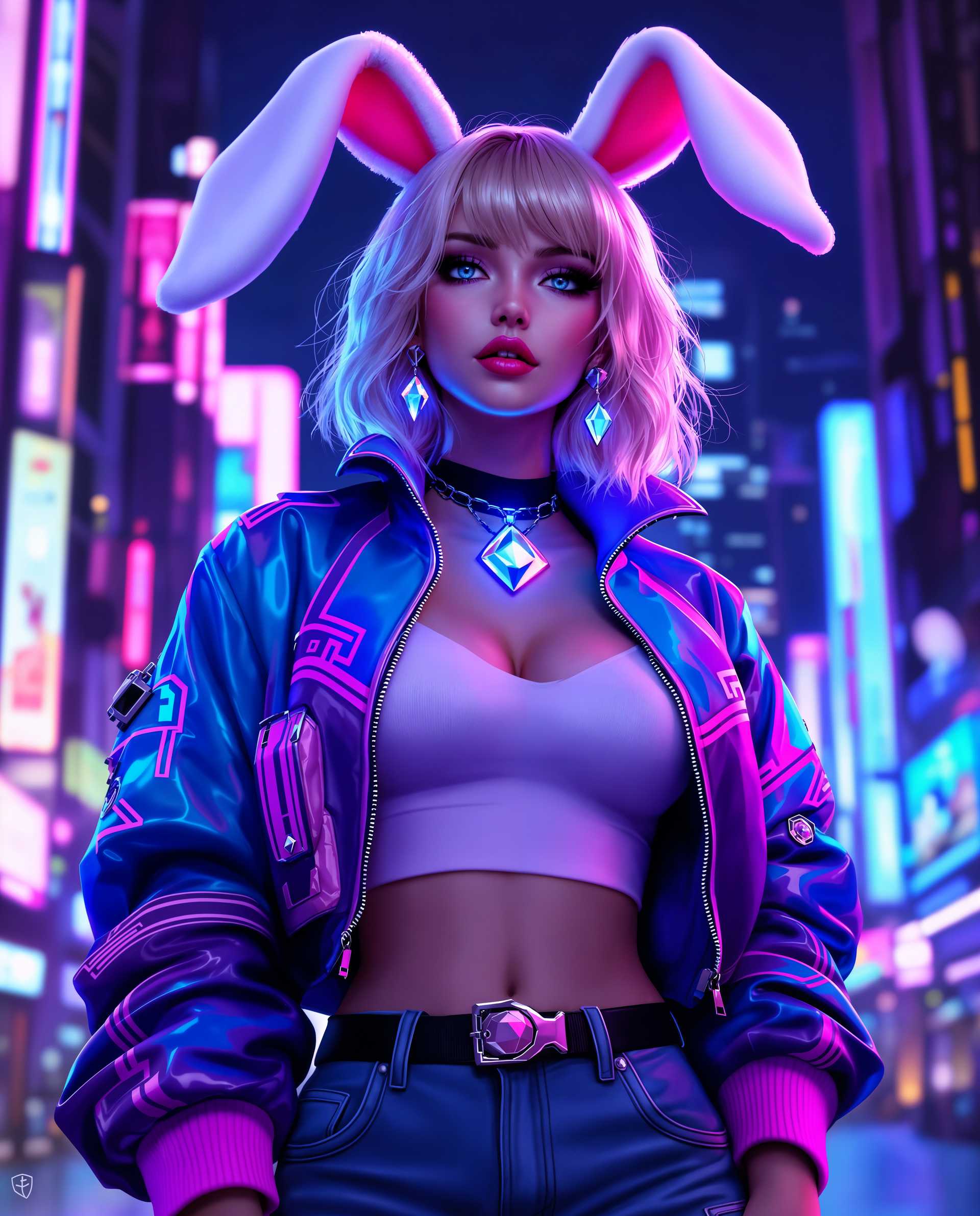




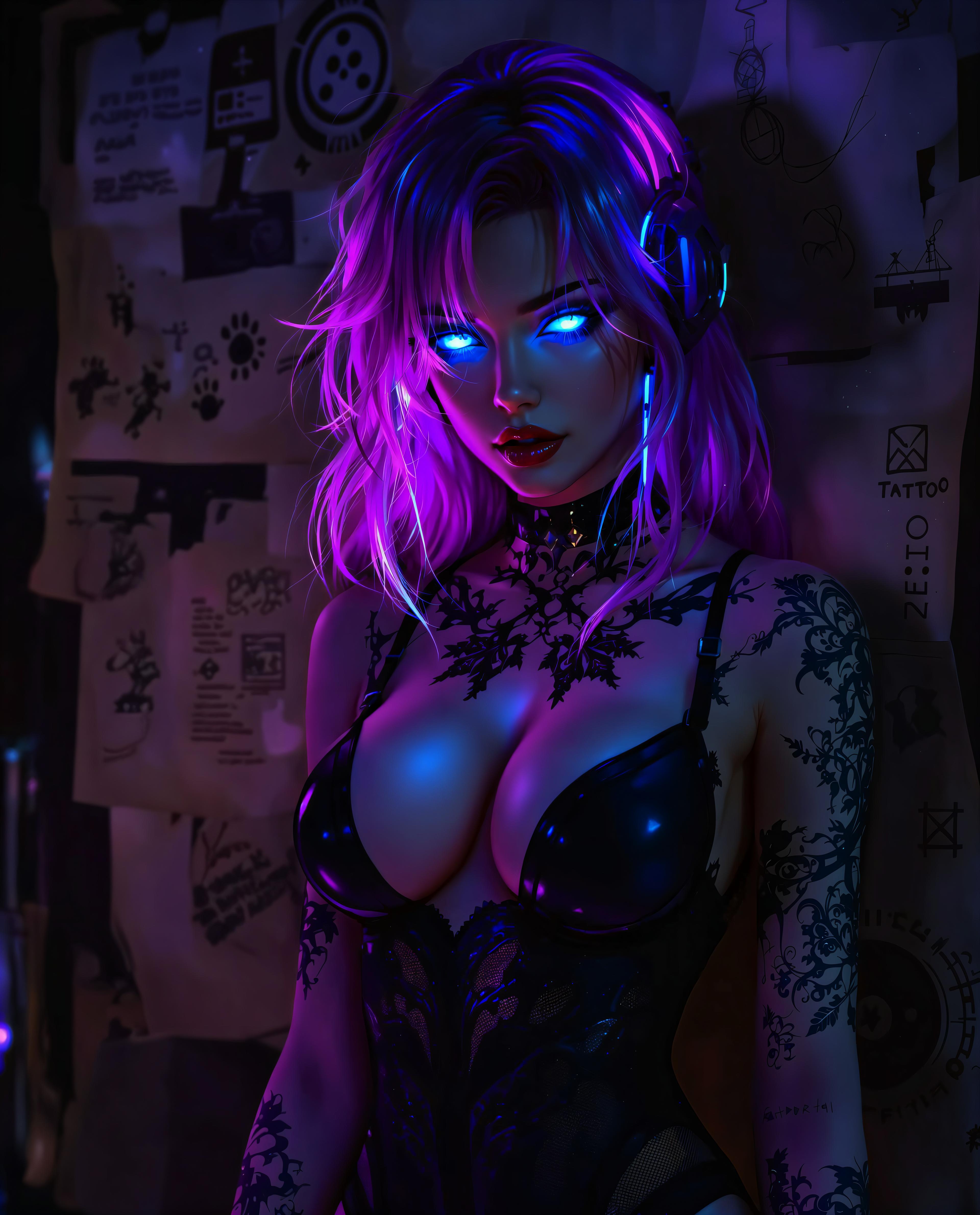






The Pixel Dojo Advantage
Why PixelDojo outperforms other options for AI image generation with negative prompts:
| Others | Pixel Dojo |
|---|---|
| Traditional Image Editing | Automate the removal of unwanted elements without manual editing, saving time and effort. |
| Generic AI Tools | Advanced negative prompting capabilities allow for more precise control over image outputs. |
| Manual Photo Editing | Achieve desired results faster and more efficiently without the need for extensive editing skills. |
Loved by Creators
See what our community says about Negative prompt Wan 2.6
"Using negative prompts in WAN 2.6 has revolutionized my workflow. I can now create exactly what I envision without unwanted artifacts."
Alex Johnson
Digital Artist
"PixelDojo's tools have given me unparalleled control over my AI-generated images. Negative prompting is a game-changer."
Maria Lopez
Graphic Designer
Common Questions
Everything you need to know about Negative prompt Wan 2.6 AI generation
What are negative prompts in WAN 2.6?
Negative prompts are terms you input to specify elements you want to exclude from your AI-generated images, helping to refine the output.
How do I use negative prompts effectively?
Identify common unwanted elements in your images and list them in the negative prompt field to guide the AI in excluding them from the final output.
Can negative prompts improve image quality?
Yes, by specifying undesirable elements, negative prompts can reduce artifacts and enhance the overall quality and realism of your images.
Is negative prompting available in all PixelDojo tools?
Negative prompting is a feature in advanced tools like WAN 2.6, allowing for greater control over image generation.
Do I need technical expertise to use negative prompts?
No, PixelDojo's user-friendly interface makes it easy for anyone to use negative prompts effectively without technical knowledge.
Can I adjust negative prompts after generating an image?
Yes, you can refine your negative prompts and regenerate the image to achieve the desired result.